Part V · WORKSTATION AND WORKDAY MECHANICS
Workstation Setup Through Biomechanics
Workstation advice is usually a list of rules to obey (Sonne et al., 2012). This chapter offers something more useful: the reasoning behind them. Read through the lens of load, leverage and joint angle, a good setup is one that lowers the mechanical cost of sustained posture and makes movement easy — a powerful tool, but never a substitute for moving.
13.1 Ergonomics Through a Biomechanical Lens
Almost everyone who works at a desk has met ergonomic advice: keep your screen at eye level, your elbows at ninety degrees, your feet flat on the floor. The advice is sound, but it is usually delivered as a set of arbitrary-seeming rules, and rules without reasons are easily forgotten, misapplied or abandoned. This chapter takes a different approach. Having spent the previous parts of this book building an understanding of how load, leverage and joint position determine the mechanical cost of a posture, it now turns that understanding on the workstation itself, so that the familiar rules become not commandments to obey but consequences to reason from.
Seen this way, the purpose of workstation setup is precise and unmysterious. It is to reduce the mechanical cost of holding a sustained posture, in three principal ways: by keeping the major joints near neutral, so the passive tissues are not strained at the ends of their range; by supporting the weight of body segments — the arms, the trunk, the head — so that muscles need not hold them statically against gravity; and by minimising the external moments, the leverage of loads acting at a distance from a joint, that the body must counter. A good setup, in short, lowers the load that sustained desk posture imposes on the tissues.
But this chapter carries a second message as insistent as the first, and it is best stated at the outset: a good setup reduces load, but it does not abolish the problem of sustained posture. As Chapter 3 argued and Chapter 7 demonstrated, the deepest difficulty of desk work is not bad posture but unchanging posture, and no arrangement of furniture, however optimal, changes the fact that a position held for hours becomes costly whatever it is. Ergonomics and movement are therefore complementary, not alternative: the setup lowers the per-moment cost, and movement addresses the duration. To rely on the first while neglecting the second — the common error — is to solve half the problem and call it whole.
13.2 The Seated Workstation as a System
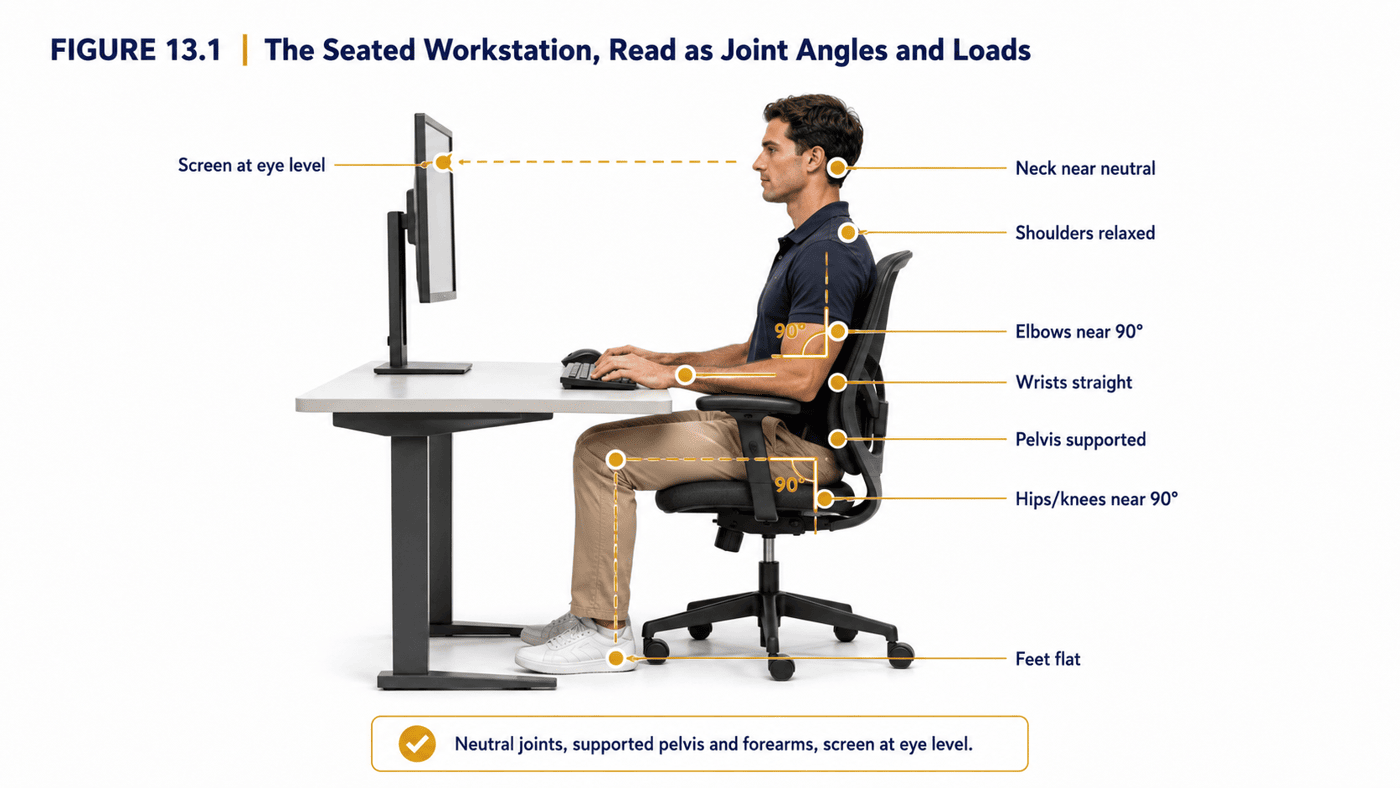
The seated workstation is best understood not as a collection of separate objects but as a single system in which the chair, the desk, the screen and the input devices together determine the posture the body adopts. Change one element and the others must respond: raise the chair and the feet may leave the floor; lower the desk and the wrists drop; move the screen back and the eyes and neck adjust. The aim is to configure the whole system so that the body can rest in a low-load posture — and, crucially, move easily between several such postures. Figure 13.1 shows the arrangement, annotated as the joint angles and support points it is really about.
The broad targets follow directly from the biomechanics. The major joints sit near neutral or in their low-load ranges: the elbows bent around ninety to a hundred degrees, the hips open to roughly ninety to a hundred and ten degrees, the knees near ninety, the wrists straight rather than bent back. The weight of the body is supported rather than held: the pelvis and lower back by the seat and backrest, the forearms by the desk or armrests, the feet by the floor or a footrest. And the screen is placed so the head can balance over the spine without the neck flexing forward — the single most important adjustment for the upper body, as the next section explains (O’Sullivan et al., 2006). The detail of each element occupies the sections that follow; the principle uniting them is that every segment of the body should be either near neutral or supported, so that no tissue is left to hold a sustained load it was not built to hold.
Why neutral, not rigid
A crucial qualification prevents this advice from being misread. To say that the joints should sit near neutral is not to say that the body should be frozen in a single rigid posture — that would simply reintroduce the sustained-loading problem in a tidier shape. ‘Neutral’ describes a low-load zone, not a precise point to be locked into, and the targets above are starting positions to move around rather than a cage to be held. As Chapter 7 established, there is no single perfect posture, and the healthiest sitting is varied sitting. The right way to read a workstation’s ideal angles, then, is as the centre of a comfortable range the body should drift across all day — leaning back, sitting forward, shifting and resettling — not as a statue’s pose to be maintained. A setup that allows this easy variation is doing its job; one that forces a single fixed posture, however ‘correct’, is not.
13.3 The Monitor: Height, Distance and the Neck
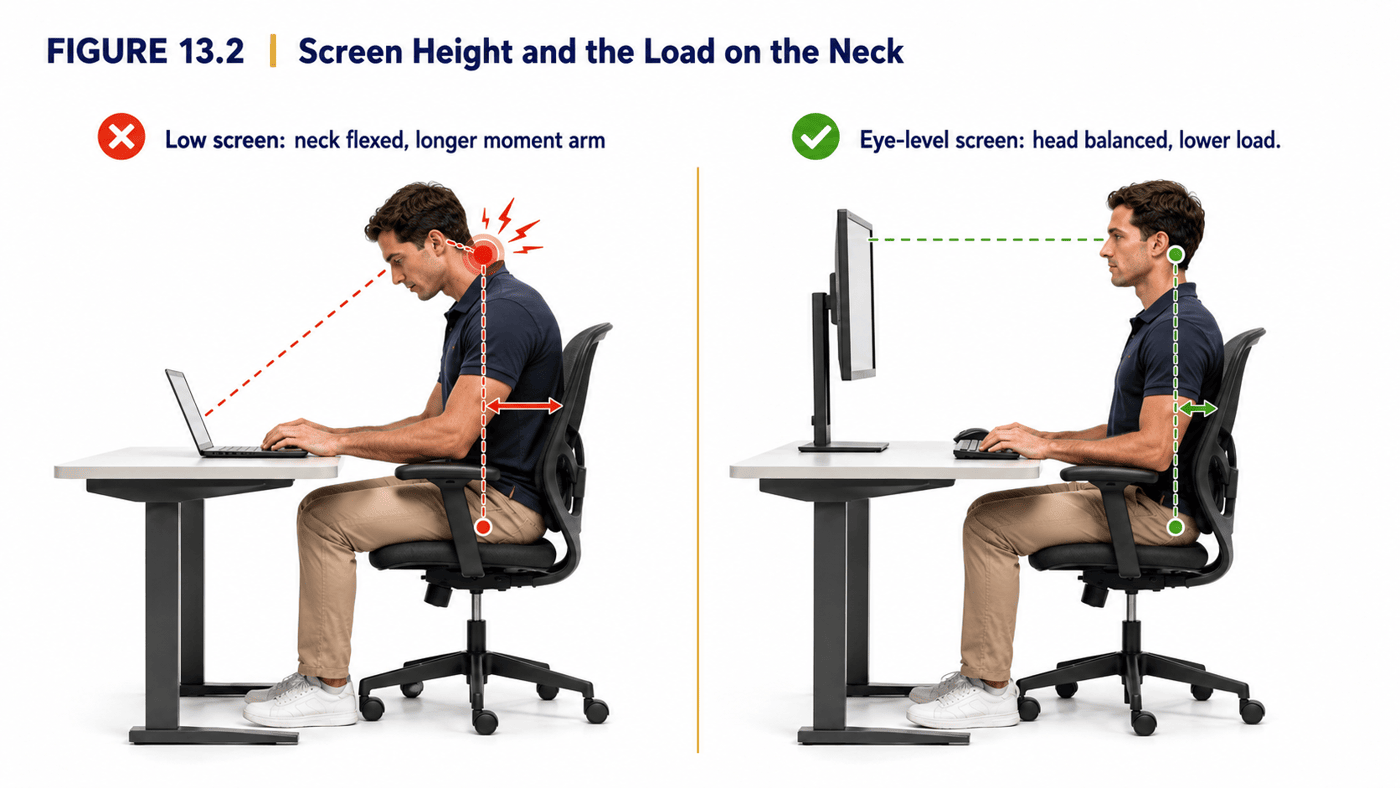
If one adjustment matters most for the desk body’s upper half, it is the position of the screen, because of its direct effect on the neck. Chapter 4 set out the mechanics: the head is heavy, and whenever it tilts forward of the spine, the neck’s extensor muscles must contract to hold it, with the load rising steeply as the angle of forward tilt increases — Hansraj (2014) quantified how the effective load on the cervical spine multiplies with the angle of head flexion. A screen placed too low is the most common cause of that forward tilt at the desk, drawing the head down and the eyes with it, hour after hour. Figure 13.2 contrasts the large extensor load of a low screen with the low load of one at eye level.
The targets follow directly. The top of the screen should sit at or a little below eye level, so that the natural, slightly downward gaze falls on the middle of the display and the head can balance over the spine without tilting forward. The screen should be roughly an arm’s length away — far enough to be comfortable for the eyes, close enough to be read without craning. For those who use two screens, both should be at the same height, with the primary one directly ahead; for those who wear varifocal or bifocal lenses, the screen often needs to be lower, because the habit of tilting the head back to read through the lower lens creates its own neck load — a reminder that the right setup depends on the individual.
The mechanical pay-off of getting this right is large precisely because of the leverage involved. Because the load on the neck rises so steeply with forward tilt, even a modest correction — raising a laptop onto a stand, lifting a monitor a few centimetres — removes a disproportionate amount of sustained load from the cervical tissues across a working day. Few adjustments in this chapter return so much for so little effort.
Lighting, glare and the eyes
The neck and the eyes are quietly linked at the workstation, and lighting is the hinge between them. A screen washed out by glare or reflected light, or text too small or dim to read comfortably, prompts a person to squint and — critically — to lean forward toward the display to see it better. That forward lean drags the head into exactly the flexed, load-bearing posture this chapter warns against, so that a lighting problem becomes a neck problem. Positioning the screen at right angles to windows rather than facing or backing them, controlling glare, and setting a comfortable brightness and text size all remove the incentive to crane toward the screen.
The eyes themselves also benefit from the movement this book champions. Sustained close focus on a screen reduces blinking and holds the eye’s focusing muscles in one position, contributing to the dry, tired eyes of a long screen day. A simple, well-established habit eases this: the ‘20–20–20’ rule, which is to look at something around twenty feet away for about twenty seconds every twenty minutes — conveniently, the same rough interval recommended for movement breaks, so that a glance into the distance and a stand-up can be taken together. A document holder placed beside the screen, rather than papers flat on the desk, likewise spares the neck the repeated downward flexion of looking from screen to desk and back.
13.4 The Keyboard, Mouse and the Upper Limb
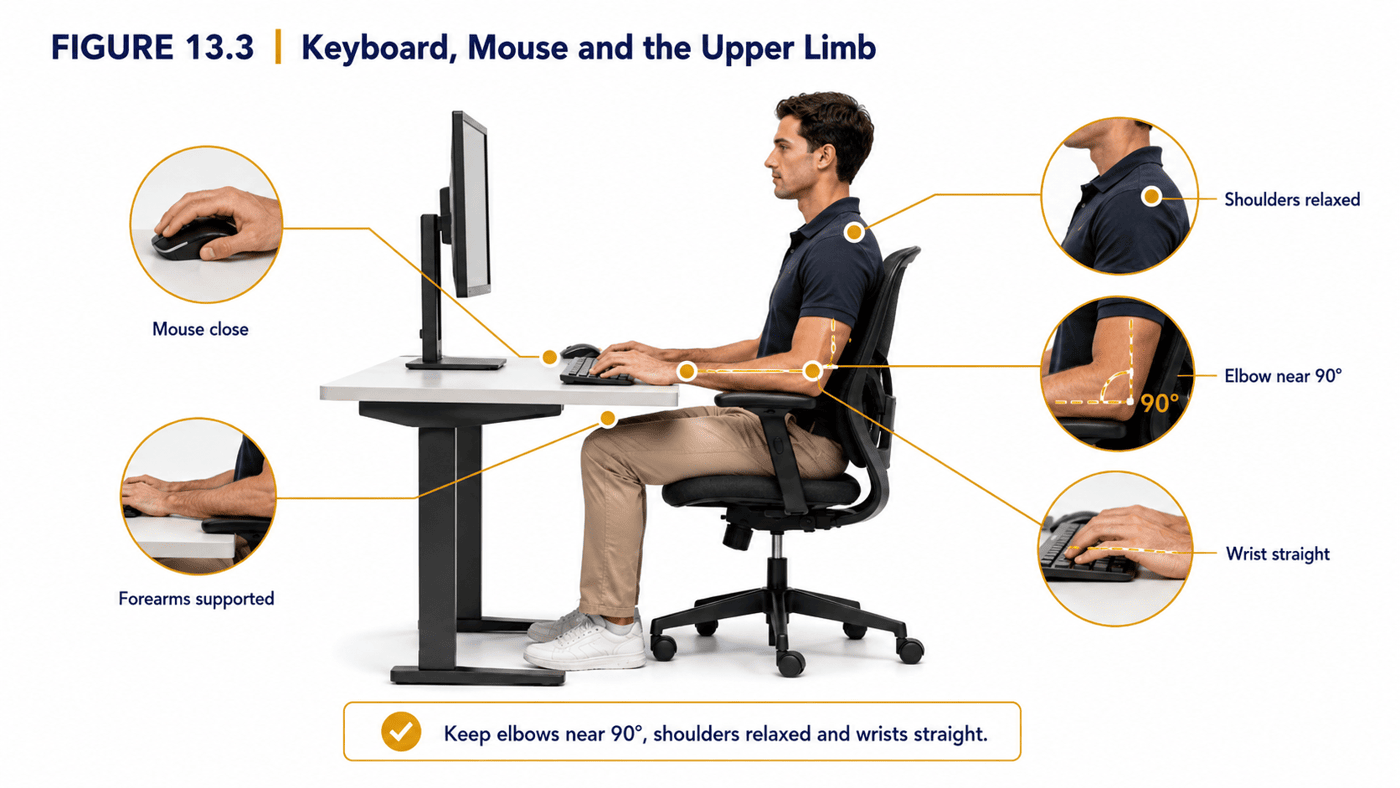
The input devices govern the posture of the arms, and their placement follows the same logic of neutral joints and supported segments. The keyboard and mouse should sit at a height that lets the elbows hang near ninety to a hundred degrees with the shoulders relaxed — not hauled upward toward the ears, the tell-tale sign of a work surface set too high, which loads the upper trapezius exactly as Chapter 5 described. The wrists should be straight, neither bent back (extended) nor angled outward, since sustained deviation raises the load and pressure within the wrist that Chapter 6 examined. Figure 13.3 contrasts the strained and neutral upper limb.
Several practical details follow. The mouse should sit close to the keyboard and at the same height, so the arm need not reach forward or out to the side to use it; a long reach to a distant mouse is a common, avoidable source of shoulder and forearm load. The forearms should be supported — by the desk surface, by armrests, or by resting lightly on the desk edge — so the shoulders are not left to hold the weight of the arms statically all day. And the keyboard itself need not be tilted up at the back, as many are by their fold-out feet; a flat or slightly negative tilt keeps the wrists straighter. None of these is a rigid rule; each is an application of the same principle of keeping the upper-limb joints near neutral and their weight supported.
13.5 The Chair and the Pelvis
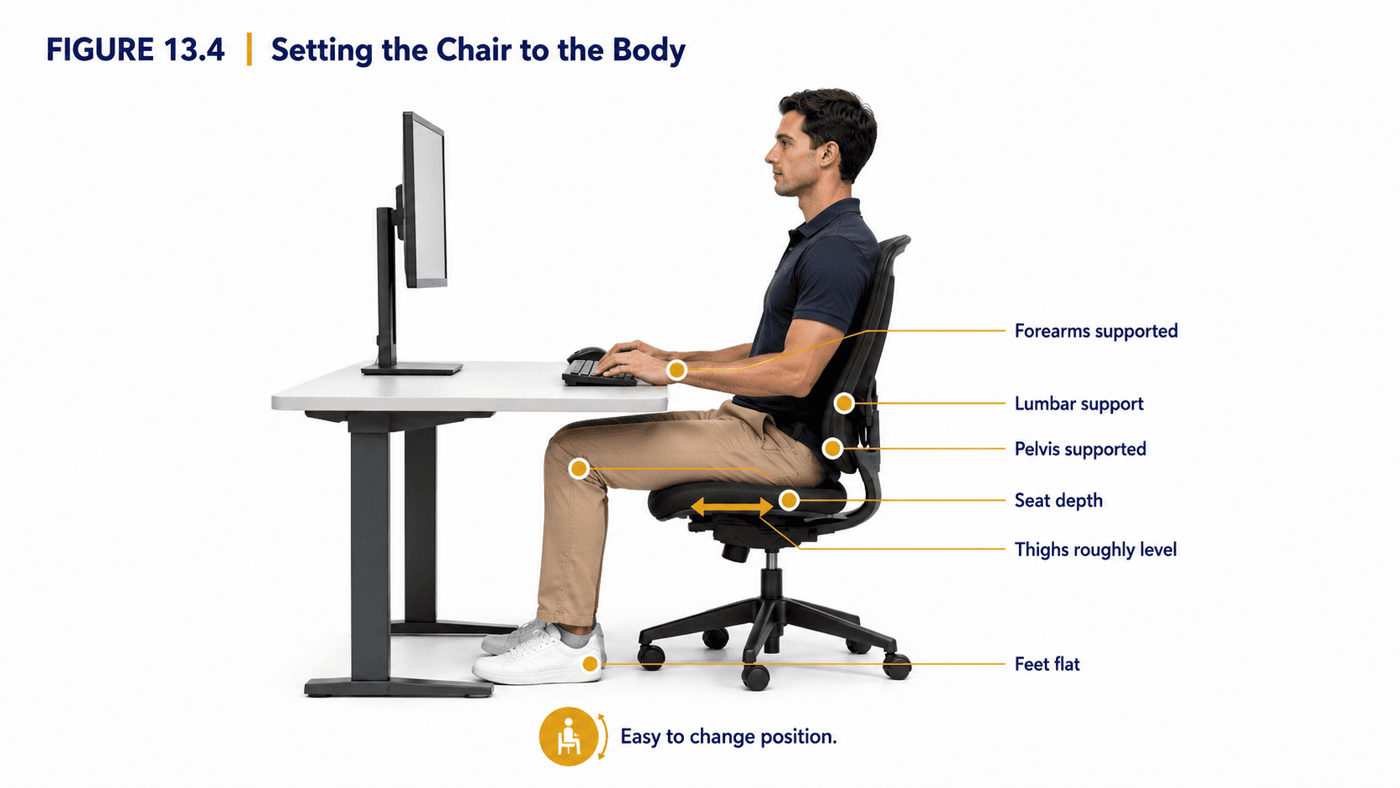
The chair is the foundation of the seated workstation, because it determines the position of the pelvis, and the pelvis — as Chapter 7 showed — governs the posture of the spine above it. A well-set chair supports the pelvis and lower back in a way that preserves, rather than flattens, the lumbar curve, and supports the weight of the trunk so the spinal muscles need not hold it statically. Figure 13.4 shows the key adjustments.
Four adjustments matter most. The seat height is set so the feet rest flat on the floor (or a footrest) with the thighs roughly level and the hips open to around ninety degrees or a little more; feet left dangling load the underside of the thighs and leave the pelvis unsupported. The seat depth leaves a small gap — two or three fingers — between the front edge of the seat and the back of the knee, so the seat supports the thighs without pressing into the knee. The backrest supports the lower back, ideally with a lumbar support that fills the hollow of the lumbar curve; a slight backward recline, rather than a rigid upright, is worth noting here, because reclining a little transfers some of the trunk’s weight onto the backrest and reduces the load on the lumbar discs, a point established in the spine ergonomics literature (Pope, Goh & Magnusson, 2002). Finally, the armrests, if present, are set to support the forearms with the shoulders relaxed.
Yet the chair illustrates the chapter’s central paradox more sharply than any other element. A chair’s most valuable feature is not the perfection of the posture it supports but the ease with which it lets the sitter change posture — to recline and sit forward, to shift and resettle, to rise and return. As Chapter 7 put it, the best chair is the one you do not stay still in. An expensive ergonomic chair used as a place to sit rigidly for eight hours delivers far less than a modest one used by someone who moves; the chair is a platform for varied posture, not a mould to be held in.
| Element | Biomechanical target | Why it matters |
|---|---|---|
| Screen height | Top at/just below eye level | Avoids forward head tilt and steep neck load |
| Screen distance | About an arm’s length | Comfortable for the eyes without craning |
| Elbows | ~90–100°, shoulders relaxed | Keeps shoulder/forearm load low |
| Wrists | Straight (neutral) | Reduces wrist load and pressure (Ch 6) |
| Seat height | Feet flat, thighs ~level | Supports the pelvis; grounds the feet |
| Backrest | Lumbar support, slight recline | Supports the trunk; lowers disc load |
Table 13.1. Workstation targets and the biomechanical reasons behind them — rules as consequences, not commandments.
13.6 The Laptop Problem
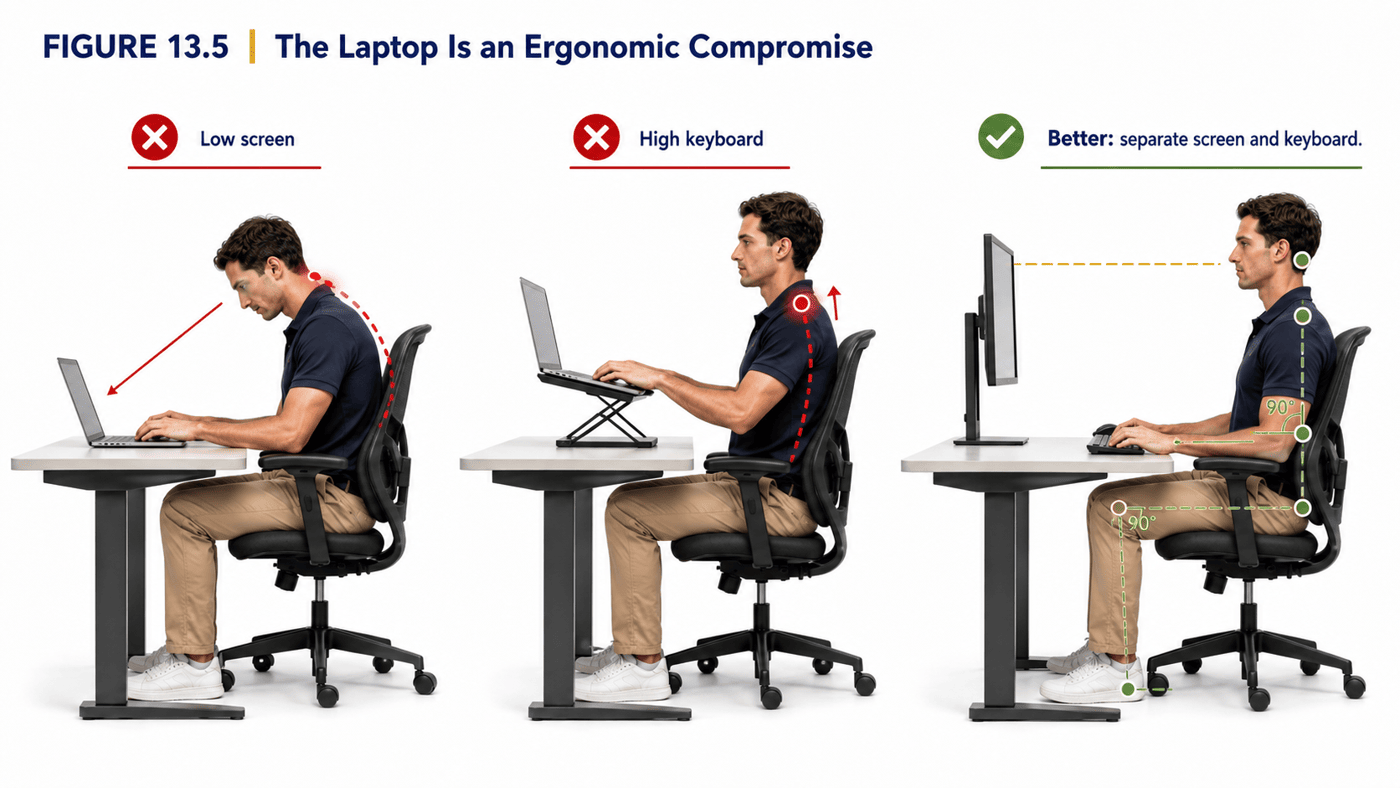
No discussion of workstation setup can ignore the device on which a great deal of modern work is actually done: the laptop. The laptop poses a problem that no amount of good intention can fully solve, because its screen and keyboard are fixed together. Set the laptop on a desk at a comfortable keyboard height, and the screen sits far too low, drawing the head and neck down into exactly the forward tilt this chapter warns against. Raise the laptop so the screen is at eye level, and the keyboard rises with it, forcing the shoulders and wrists into a strained, elevated position. As Figure 13.5 shows, the laptop alone offers only a choice between a sore neck and sore shoulders — a genuine ergonomic compromise, not a failing of the user.
For brief, occasional use this compromise is of little consequence; the body tolerates short periods of awkward posture easily, and a laptop used for an hour in a café needs no special arrangement. The problem is sustained use — the many people who do a full working day on a laptop, day after day. For them the resolution is to separate what the laptop fuses: to raise the laptop screen (or add an external monitor) to eye level, and to add a separate keyboard and mouse at the proper lower height. This simple separation, supported by research into laptop posture (Asundi et al., 2010), converts the compromised laptop into a properly arranged workstation, and is the single most valuable change a habitual laptop worker can make.
The forgotten inputs: phone and tablet
Workstation advice fixes on the computer and forgets the devices on which a growing share of the day is spent: the phone and the tablet. These pose a sharper version of the laptop’s problem, because they are habitually held low — in the lap, on the desk, in the hands at waist height — drawing the head into a steep forward flexion for long stretches. As Chapter 4 noted, the load on the neck rises steeply with the angle of forward tilt, and the deep flexion typical of looking down at a phone places the cervical tissues under a sustained load greater than most screen postures impose.
The remedies mirror those for the laptop. Raising the device toward eye level rather than dropping the head to it — holding the phone higher, propping the tablet on a stand — keeps the neck closer to neutral; using voice input for longer messages spares it entirely; and, above all, limiting the duration of any single bout of head-down device use applies the same lesson as the rest of this book. For the many people whose necks ache from hours on handheld devices, the device is not the enemy — the sustained, head-down position is, and it is the position, not the phone, that needs changing.
13.7 The Limits of Setup: Why the Best Chair Won’t Save You
Having set out how to configure a workstation well, this chapter must now press its second message, because it is the one most often missed amid the marketing of ergonomic furniture. A good setup lowers the mechanical cost of each moment of sustained posture — but it does nothing to address the duration of that posture, and duration, as this book has argued throughout, is the deeper problem. A perfectly arranged workstation, sat in without moving for eight hours, still subjects the tissues to the creep, the disc under-nourishment, the muscular quietening and the metabolic costs that Chapters 1, 7 and 8 described (Callaghan & McGill, 2001). Optimal posture sustained is still sustained posture.
This is why the evidence on ergonomic interventions alone is so often modest. Improving a workstation reduces strain, but on its own it produces smaller benefits than the marketing implies, and the research consistently finds that ergonomic changes work best when combined with education and, above all, with movement — as Robertson and colleagues (2013) found in studying office ergonomics training alongside sit-stand workstations. The most expensive chair on the market, used by someone who never leaves it, will not prevent the problems of desk work; a modest setup used by someone who moves regularly will largely avoid them. The furniture is a tool; the behaviour is the medicine.
The constructive conclusion is not to neglect setup — a good setup genuinely helps, and removes avoidable load — but to keep it in proportion. Set the workstation up well, because lowering the per-moment load is worth doing; then spend at least as much attention on the thing setup cannot provide, which is movement through the day. The next chapter examines one popular attempt to build movement into the workstation, the standing desk, and the chapter after it makes the full case for the movement break.
13.8 Setting Up for Movement, Not Just Posture
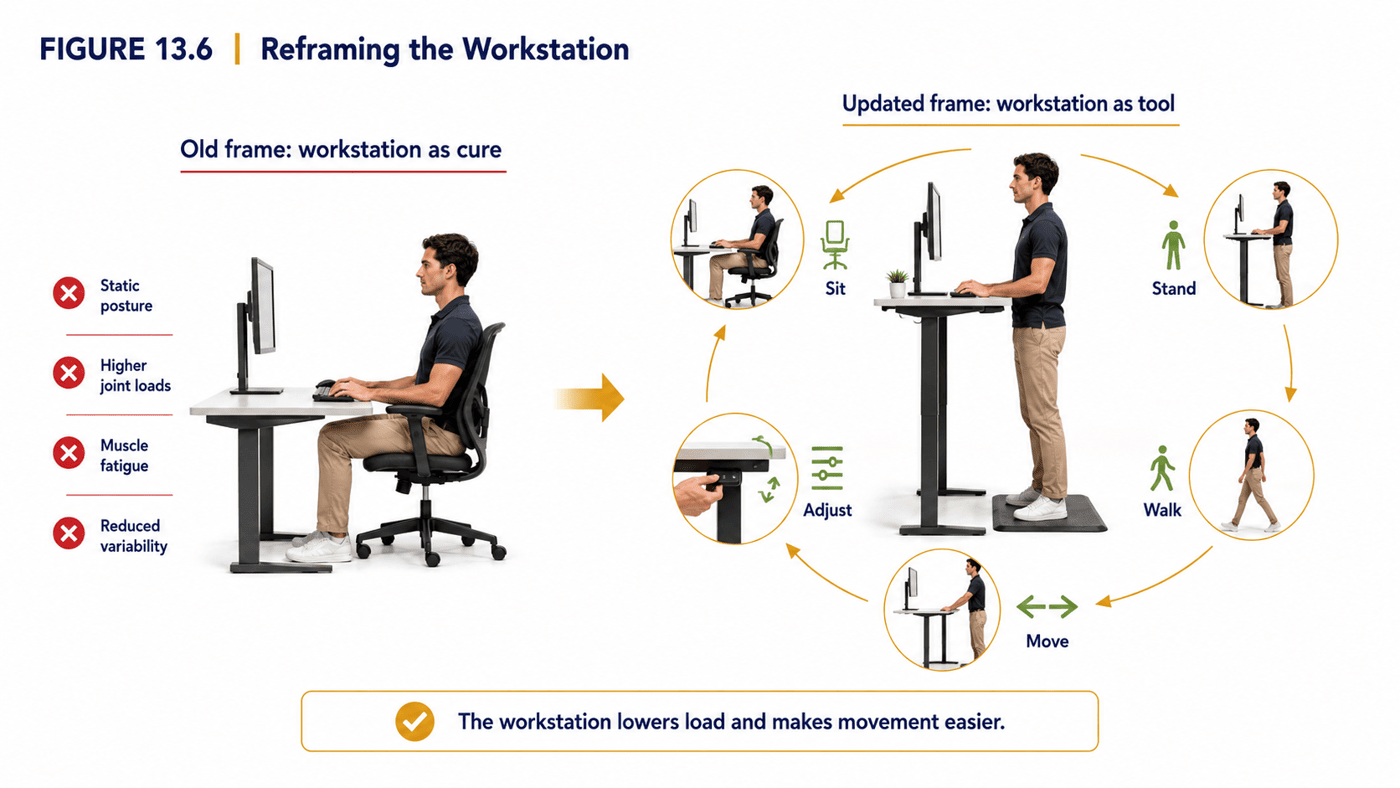
If movement is what setup cannot replace, then the most enlightened way to think about a workstation is to design it not only for good static posture but for easy movement — to make changing position and getting up as effortless as possible. Figure 13.6 captures this shift in thinking: from the workstation as the fix for the desk body, to the workstation as a tool that both lowers load and actively enables movement.
In practice this means valuing adjustability and freedom of movement as highly as any fixed dimension. A chair that reclines and swivels and lets the sitter shift easily is worth more than a rigid one locked to a single ‘correct’ posture. A sit-stand desk, whatever its limits as examined in the next chapter, has real value as a prompt to change posture during the day. Room to push back, stand and stretch; a layout that puts some things just out of easy reach so that reaching them requires rising; a habit of taking calls standing or walking — all of these turn the workstation from a place of stillness into a place that invites movement. The goal of setup, properly understood, is not to perfect a posture but to lower its cost and then to make leaving it easy.
Setup for different bodies
One last principle guards against the rigidity that ergonomic checklists can encourage: people differ, and the right setup differs with them. Bodies vary in height, proportion and the length of limb and trunk; tasks vary; and conditions such as the varifocal lenses mentioned earlier, or a history of a particular injury, change what suits a given person. The biomechanical principles in this chapter — neutral joints, supported segments, minimal external moments, easy movement — are universal, but the exact dimensions that realise them are individual. The aim is not to force every body into one set of numbers but to use the principles to find, for each person, the arrangement that lowers their load and frees their movement. Where pain or a specific condition complicates this, the guidance of a healthcare or ergonomics professional is worth seeking.
Hot-desking, home working and the borrowed setup
The neat, fixed workstation that ergonomic advice imagines is, for many people, no longer the reality. Home working, hot-desking and working on the move mean that a great deal of desk work now happens at kitchen tables, on sofas, in cafés and at shared desks with no adjustment at all. This does not make the principles of this chapter irrelevant — it makes them portable. The same biomechanics apply wherever one works; what changes is that they must be realised with whatever is to hand rather than with dedicated equipment.
A portable mindset and a little improvisation go a long way. A stack of books or a box raises a laptop screen toward eye level; a compact separate keyboard, easily carried, then resolves the laptop compromise almost anywhere. A rolled towel or cushion provides lumbar support in an unsupportive chair; a footrest can be improvised from a bag or box where a high seat leaves the feet dangling. The sofa and the bed, comfortable as they are, make poor places for sustained work and are best reserved for brief tasks. And where none of this is possible — a short stint on a laptop in a café — the saving grace is the same lever that rescues every other situation in this book: move often, and keep no single posture for long.
A common case shows the principles travelling. A professional who shifted to working from home found herself spending eight hours a day on a laptop at the kitchen table, and within weeks had developed a stiff, aching neck and shoulders. Nothing about her situation matched the textbook workstation — there was no adjustable chair, no monitor, no sit-stand desk. But the principles still applied. Raising the laptop on a stack of books brought the screen toward eye level; a cheap separate keyboard and mouse let her hands drop to a comfortable height; a cushion behind her lower back and a box under her feet supported the pelvis and grounded the legs.
The decisive change, though, was behavioural rather than environmental. She set a timer to prompt a brief movement break every half hour, took her calls standing or walking, and stopped treating the kitchen chair as a place to sit motionless for hours. Within a fortnight the neck and shoulder discomfort had largely resolved — not because she had bought an ergonomic workstation, but because she had applied the two lessons of this chapter with the means available: lower the load of the posture, and then, above all, keep moving.
| Common belief | What the biomechanics suggest |
|---|---|
| The right chair will fix my pain | Setup lowers load but cannot address duration; movement is essential (Robertson et al., 2013). |
| There is one correct posture to hold | Neutral is a zone to move around, not a point to lock into (see Chapter 7). |
| Screen height is a minor detail | Neck load rises steeply with forward tilt; screen height is high-value (Hansraj, 2014). |
| A laptop is fine for all-day work | Its joined screen and keyboard force a compromise; separate them for sustained use (Asundi et al., 2010). |
| Ergonomics replaces the need to move | It complements movement; the furniture is the tool, the behaviour the medicine. |
Table 13.2. Common workstation beliefs set against the biomechanical reasoning of this chapter.
In summary
- Workstation setup is best understood as applied biomechanics: lowering the cost of sustained posture by keeping joints near neutral, supporting the body’s weight, and minimising external moments.
- The seated workstation is a system — chair, desk, screen and inputs together — to be configured so the body rests in a low-load posture and can move easily between several.
- ‘Neutral’ is a low-load zone to move around, not a rigid pose to hold; the healthiest sitting remains varied (see Chapter 7).
- Screen height is the highest-value upper-body adjustment: neck load rises steeply with forward head tilt, so raising a low screen removes disproportionate load (Hansraj, 2014).
- The keyboard, mouse and chair are set to keep the elbows, wrists, hips and spine near neutral with the forearms and pelvis supported, a slight recline easing disc load (Pope, Goh & Magnusson, 2002).
- The laptop forces a compromise between a low screen and a high keyboard; for sustained use, separate them with a raised screen and external keyboard (Asundi et al., 2010).
- Above all, setup lowers the per-moment load but cannot address duration; even a perfect setup needs movement — the furniture is the tool, the behaviour the medicine (Robertson et al., 2013).
References
Asundi, K., Odell, D., Luce, A., & Dennerlein, J. T. (2010). Notebook computer use on a desk, lap and lap support: Effects on posture, performance, and comfort. Ergonomics, 53(1), 74–82.
Callaghan, J. P., & McGill, S. M. (2001). Low back joint loading and kinematics during standing and unsupported sitting. Ergonomics, 44(3), 280–294.
Hansraj, K. K. (2014). Assessment of stresses in the cervical spine caused by posture and position of the head. Surgical Technology International, 25, 277–279.
Neumann, D. A. (2017). Kinesiology of the musculoskeletal system: Foundations for rehabilitation (3rd ed.). Elsevier.
O’Sullivan, P. B., Dankaerts, W., Burnett, A. F., Farrell, G. T., Jefford, E., Naylor, C. S., & O’Sullivan, K. J. (2006). Effect of different upright sitting postures on spinal-pelvic curvature and trunk muscle activation in a pain-free population. Spine, 31(19), E707–E712.
Pope, M. H., Goh, K. L., & Magnusson, M. L. (2002). Spine ergonomics. Annual Review of Biomedical Engineering, 4, 49–68.
Robertson, M. M., Ciriello, V. M., & Garabet, A. M. (2013). Office ergonomics training and a sit-stand workstation: Effects on musculoskeletal and visual symptoms and performance of office workers. Applied Ergonomics, 44(1), 73–85.
Sonne, M., Villalta, D. L., & Andrews, D. M. (2012). Development and evaluation of an office ergonomic risk checklist: ROSA – Rapid Office Strain Assessment. Applied Ergonomics, 43(1), 98–108.